
 |
�@ |
Getting Start Guide
START CONSOLE
Connecting Modules
Window Control
Controling Plug-In's
Parameter by using MIDI CC
Plugin Mode
Extra Modules


|
Getting Start Guide START CONSOLE  Click a Desktop
Icon or Click a Desktop
Icon or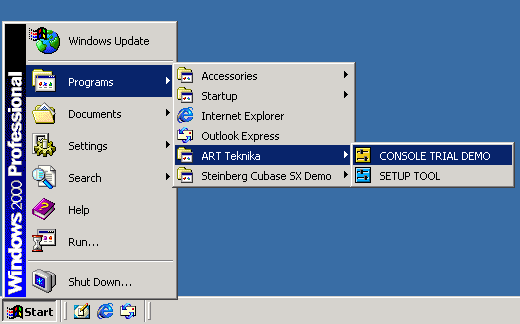 Click a ShortCut icon on DeskTop or Select from Start menu. SET a VST Plug-Ins PATH 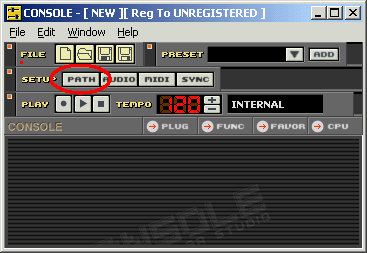 Click [PATH] Button. 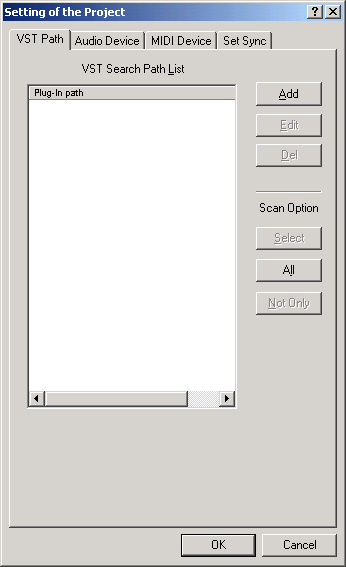 Select VST Plug-In paths. Push the [ADD] Bottun. 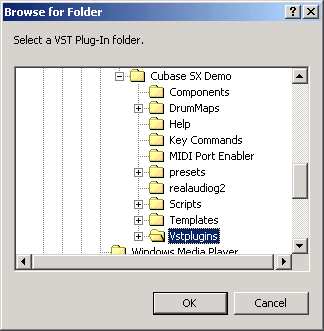 Select a VST Plug-In forlder. 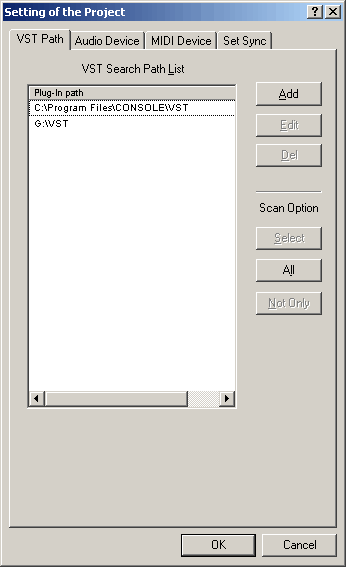 You can specify a number of folder. CONSOLE scan folder through 2 level below. After slect Plug-Ins paths, Push a Scan option bottun. Select : Scan slected paths. All : Scan all Paths. Not Only : Scan unchecked Path. SET a Audio device ASIO Driver 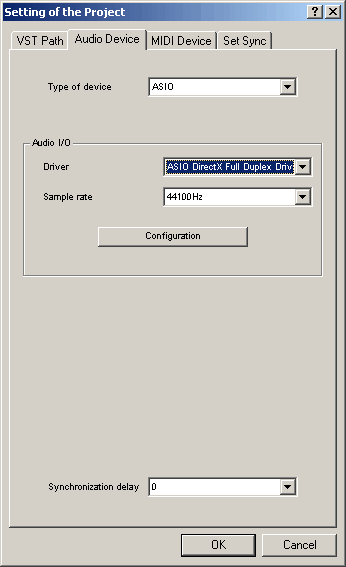 Select a type of Driver. ASIO Driver is recommended. Push [Configuration]Bottun to configure a setting of the driver. In case of ASIO driver, input & output device are same. DirectSound Driver(MME) 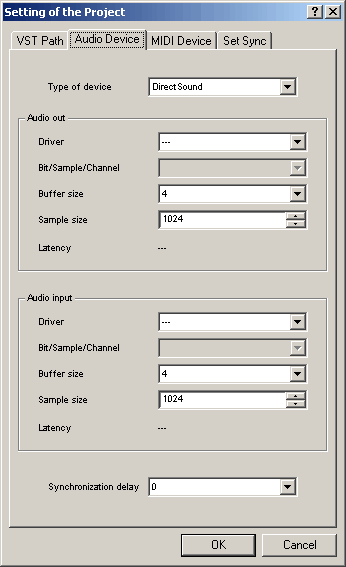 You can select a input and output device separately. But input device will not always be necessary to use. We recommend that Buffer size is 4 or above. SET a MIDI port 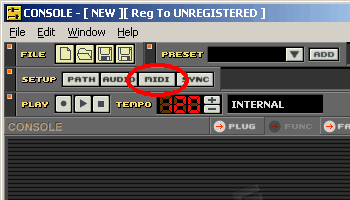 Click [MIDI] Bottun and open MIDI setting dialog. 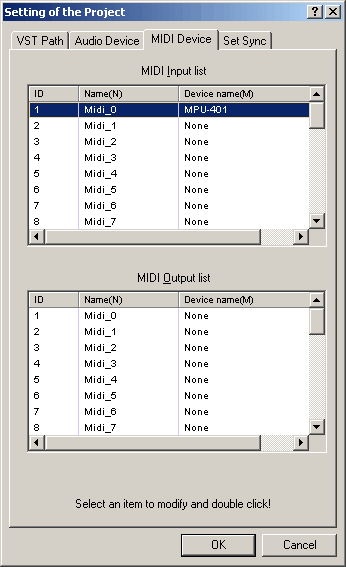 Select a MIDI port. You can select the maximam 32 port. SET a MIDI port Now, MIDI sync is not work correctly. 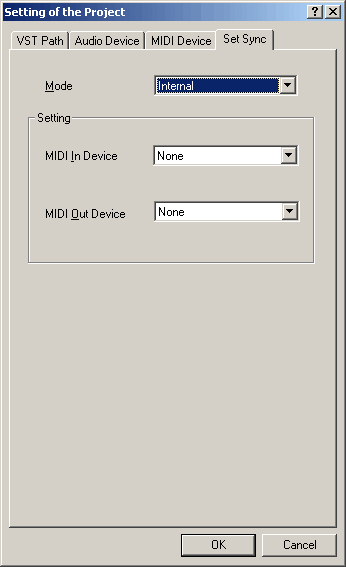 Recommend settings are: Mode : Internal MIDI in Device : none MIDI out Device : none |